Creating and Managing Subaccounts
Drift features a powerful subaccount tool for users to clearly separate positions within a single address.
Each subaccount’s margin and positions are isolated from other subaccounts, meaning that users can trade on isolated margin via different subaccounts.
Each subaccount has independent positions, balances and margins, and can trade independently. Balances or liquidations from each subaccount will not affect other subaccounts. Each subaccount is cross-margined.
A subaccount can hold up to 8 perpetual and 8 spot positions and 32 open orders total. A perpetual position with 0 base, but only unsettled P&L counts as an open position.
Adding a Subaccount
Here’s how you can add a subaccount:
Go to the account dropdown in the top right of the app.
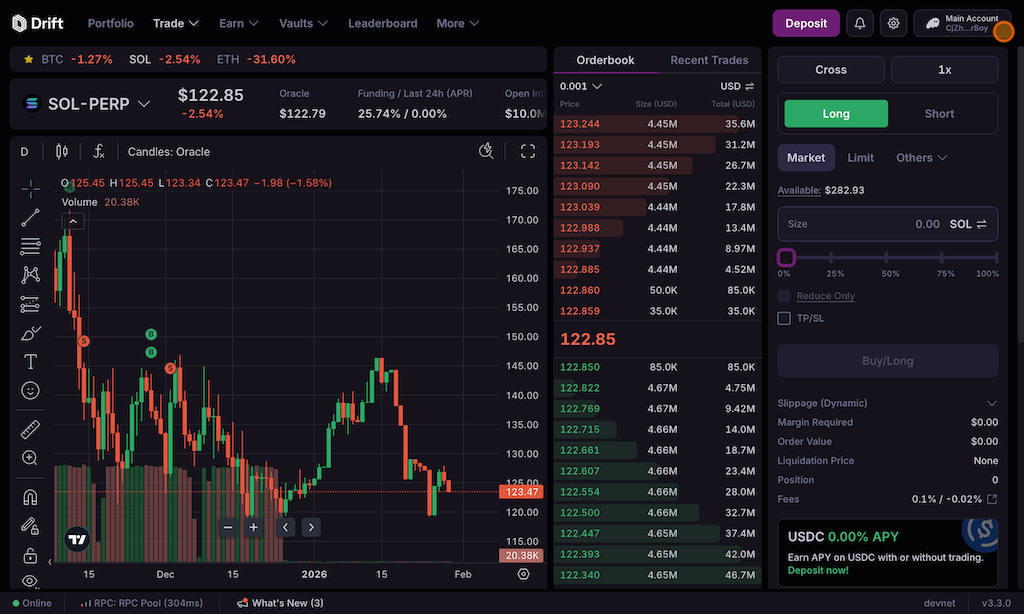
Click “Add Account”
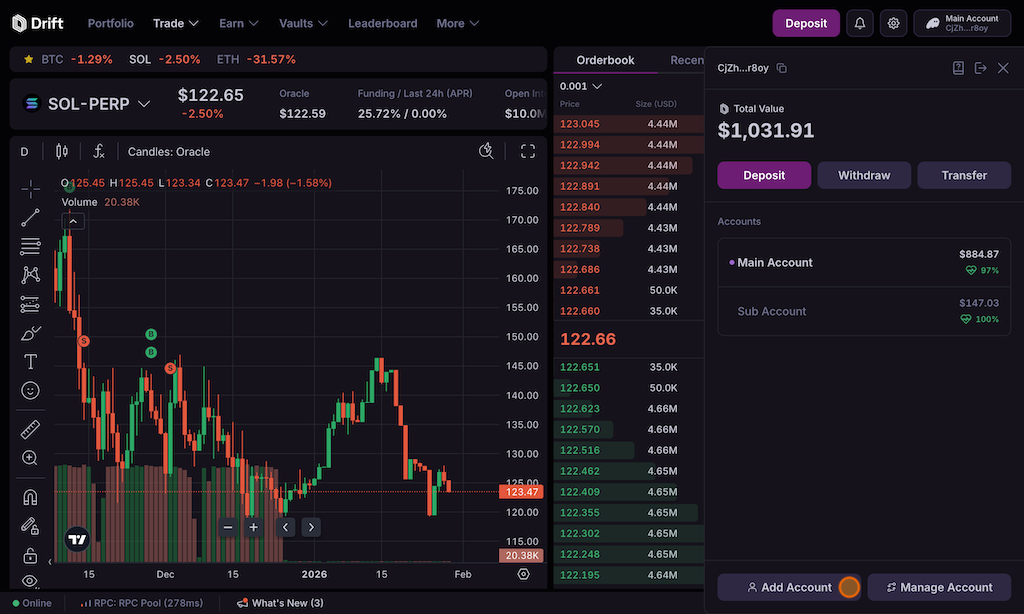
Confirm
You’ll be asked to name your new subaccount and deposit collateral from your wallet to fund that account. You can also transfer collateral to your new subaccount from an existing one to fund it.
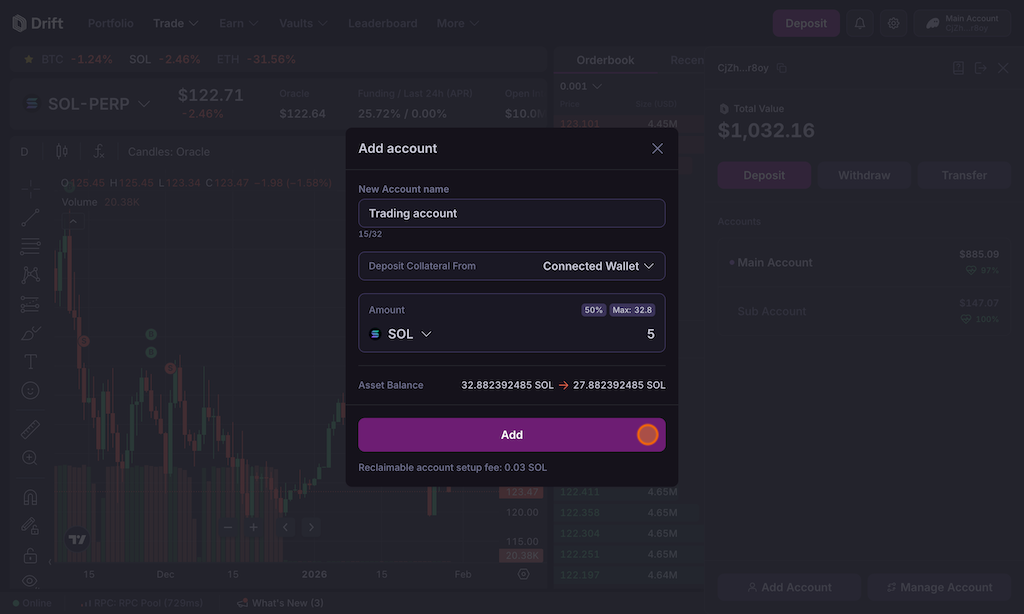
Editing and Deleting a Subaccount
You can edit and delete subaccounts from the accounts screen
Settle balances
Make sure your account has zero balances. This includes open borrows, any unsettled pnl’s.
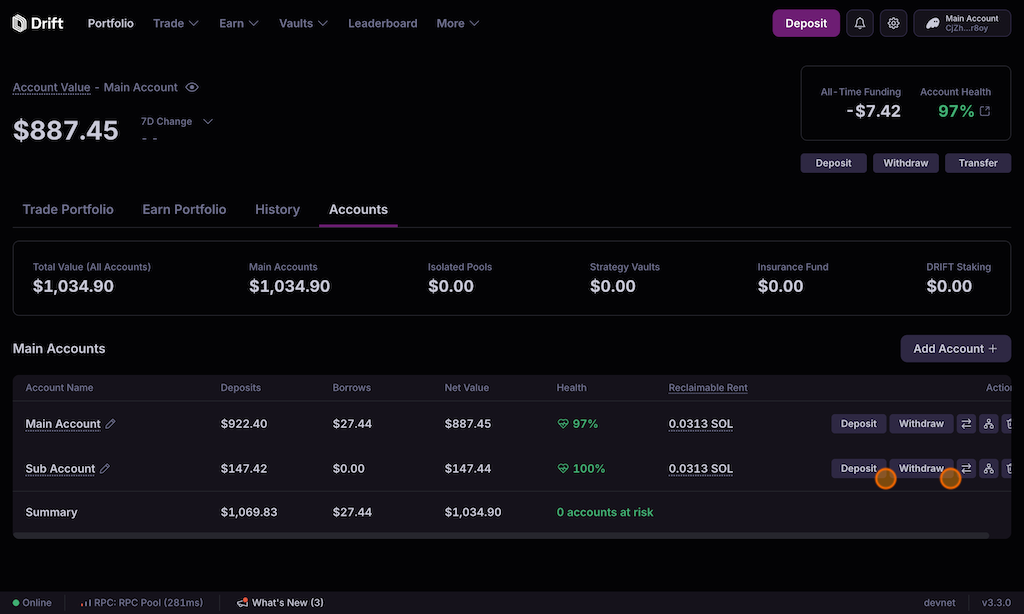
Stop activity
Make sure your account is idle, accounts that have no activity for few hours (4-5) are marked as idle.
Delete
Click the trash bin icon on the interface.
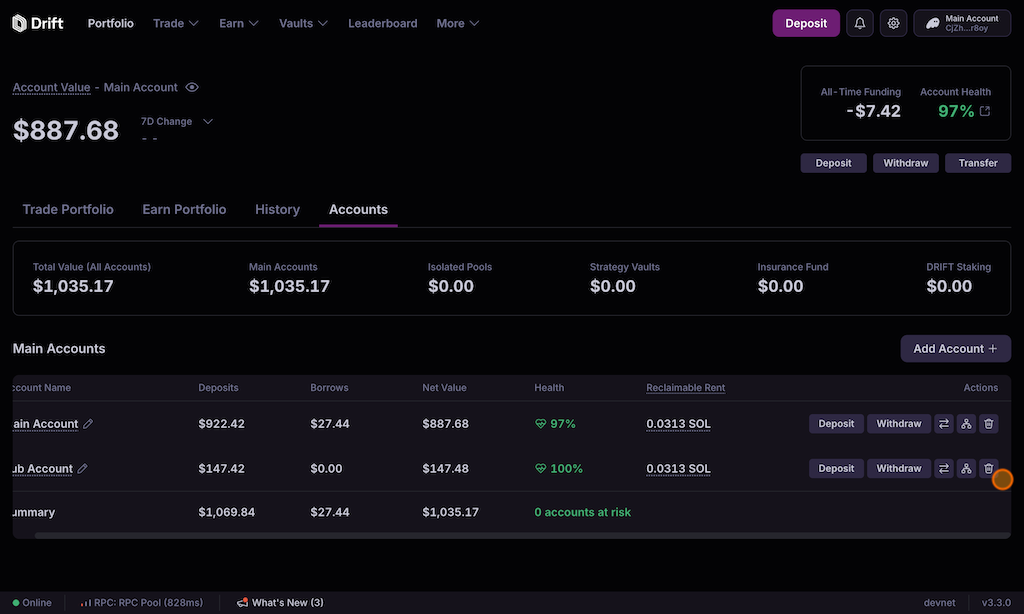
Deleting an account instantly gives you the rent back, there are no additional steps to claim the rent $SOL.
Deleting an account deletes the history attached to that address and there is no backup for this.
Excess Account Rent Redeeming (users who paid rent for more than 0.035)
Users paying excess rent can claim their excess amount after 13 days. It can be claimed at Account>ManageAccounts>Claim (under Reclaimable Rent)
Switching Subaccounts
Once you’ve created a new account, you can use the same account switcher to move between them.
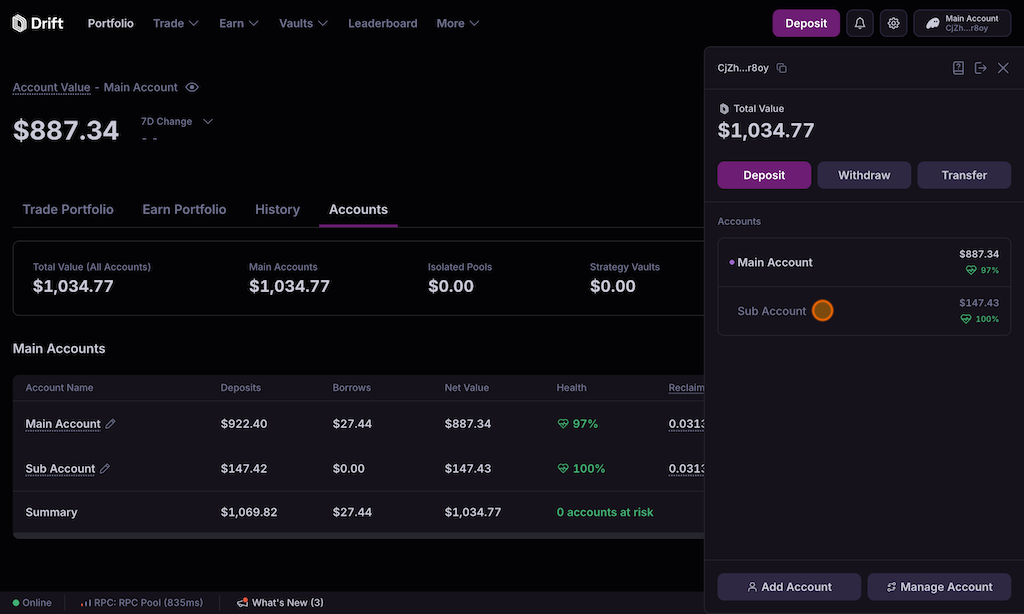
Managing Subaccount Assets
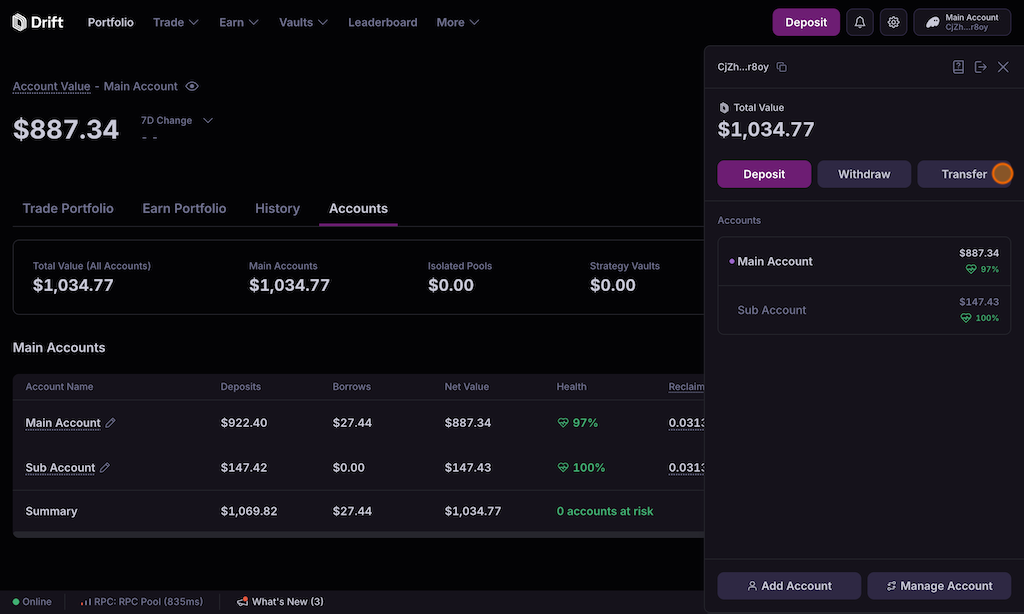
You can easily manage your assets via the Accounts button in the Accounts Dropdown or via
-
Deposit additional assets
-
Withdraw to your wallet
-
Transfer assets between accounts
To see the assets of a single subaccount, use the account switcher in the left navigation to switch to that account.